Guide to create a Policy Citations Dashboard
Overview
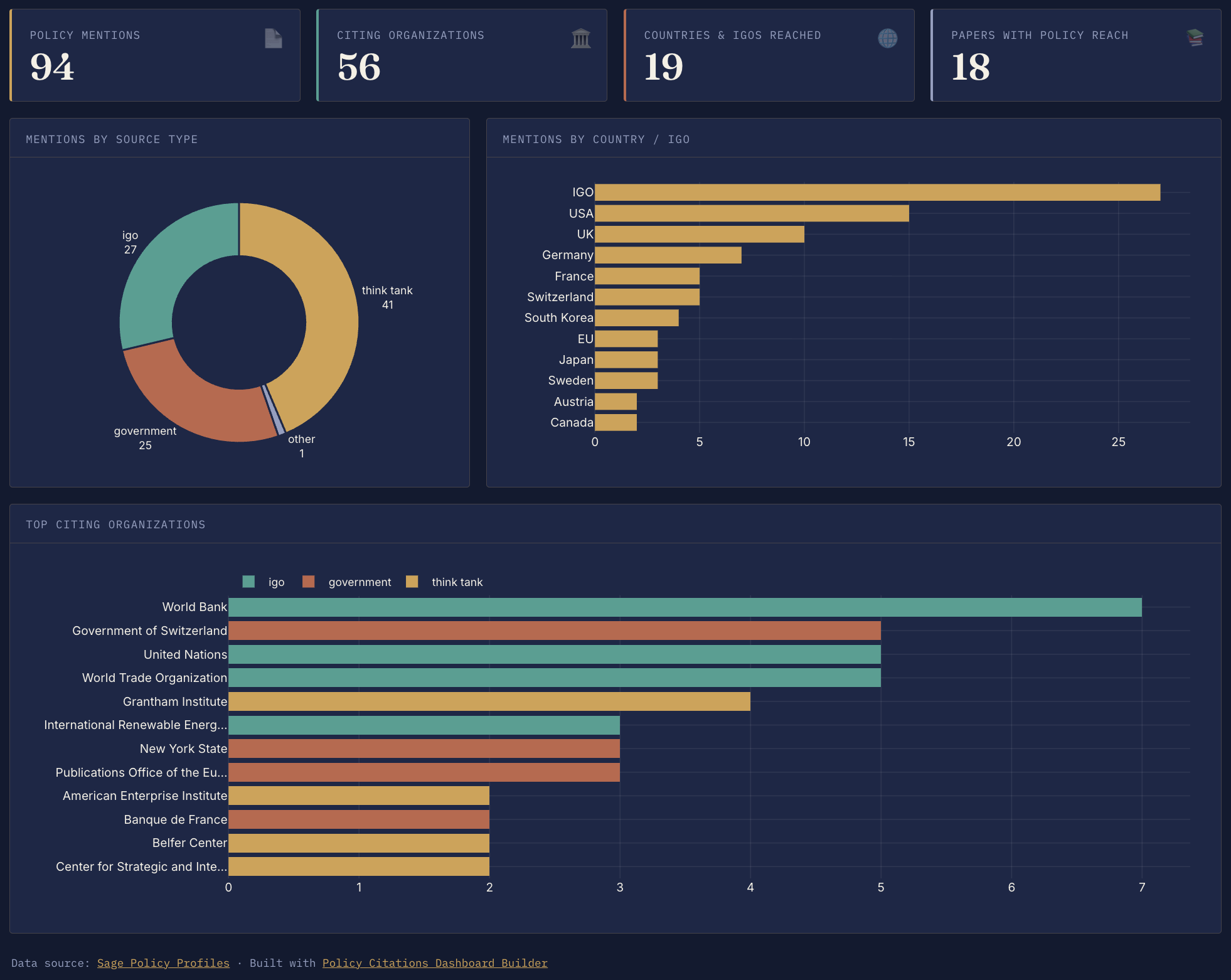
The Policy Citations Dashboard Builder turns a Sage Policy Profiles exported CSV into an interactive dashboard. You do not need to register for the dashboard builder itself. The CSV is processed in your browser, and you can save a standalone HTML dashboard to host on your own website or share with others.
This guide walks you through:
- create or access your Sage Policy Profiles account
- connect your researcher profile with ORCID
- download your policy citation data as a CSV file
- import the CSV into the dashboard builder
- customize and save your dashboard
1. Create a Sage Policy Profiles account
Go to Sage Policy Profiles and create a free account.
After signing up, sign in to your account and check that your researcher profile is available. If you already have an account, you can skip this step and sign in directly.
2. Link your profile with ORCID
In Sage Policy Profiles, connect your researcher profile to your ORCID iD.
This helps Sage Policy Profiles identify your publications and match them with policy documents. If you do not already have an ORCID iD, create one at ORCID first, then return to Sage Policy Profiles and link it.
3. Download your policy citation data
Open your Sage Policy Profiles researcher profile and look for the policy citations or policy impact data export option.
Download the export as a CSV file. The file is commonly named something like:
policy-impact-export.csvKeep the CSV file as downloaded. You do not need to edit it before importing it to the dashboard builder.
4. Open the Dashboard Builder
Go to Policy Citations Dashboard Builder.
The builder runs in your browser. It does not require an account, and the imported CSV is not sent to a server for processing.
5. Upload your CSV file
In the dashboard builder:
- Select Choose CSV.
- Pick the
policy-impact-export.csvfile you downloaded from Sage Policy Profiles. - Wait for the dashboard preview to appear.
The builder will summarize your policy mentions, citing organizations, countries or IGOs reached, cited papers, topics, and policy citation timeline.
6. Customize the dashboard
Before saving, you can adjust:
- dashboard title
- subtitle
- data source label
- data source URL
- main theme colors
Theme color changes update the preview automatically. Use Default colors if you want to return to the original palette.
Troubleshooting
If the dashboard does not load after upload, check that the file is a CSV export from Sage Policy Profiles and includes columns such as Source title, Source country, Published on, Cited research titles, and Topics.
If the dashboard appears but some sections are empty, the exported CSV may not include those fields for your profile yet.
If you changed the colors and want to start over, select Default colors.
Privacy note
The dashboard builder is designed as a browser-only static site. Your CSV is processed locally in your browser session.